Six short sections. Read them before you touch a real account — most of the confusion new coordinators run into comes from not knowing these six things, not from the software being hard.
What you do hereParents enroll their own students in Bravo and pay the registration fee themselves. You don't manage sign-ups, prices, or payment methods. Your job starts after the students start attending.
Each week you record what each family used — before care, after care, any late pickups — by adding it to that family's existing order. Then you collect what they owe. That's the whole job. Everything else in this guide is a variation on it.
|
THE MENTAL MODEL An account is a family. Inside the account is an order — their running tab for the year. You add lines to that tab as care is used, and settle it as they pay. The account also holds a wallet (credit/coupon) and notes (your written record). Four things, one hierarchy. |
What things are called
Bravo's words and your words are different, and that mismatch causes more support tickets than anything else. Learn this table and most of the interface explains itself.
|
You say |
Bravo says |
Where it lives |
|---|---|---|
|
A family |
Account |
Accounts |
|
Before care / after care / ASP |
Division |
Inside an order |
|
A child who signed up |
Enrollment |
Enrollments |
|
The bill, the tab |
Order |
Account → Orders |
|
A week of care |
Week |
Order → +Division → Select Week |
|
A late pickup fee or drop-in |
Service |
Order → +Service |
|
Discount/aid the family can get |
Credit |
Account → Wallet |
|
Taking a payment |
Settle balance |
Order → Actions |
These are the facts that make the rest of the system make sense. Several of them save you work you might otherwise assume you have to do.
- Billing follows usage. Nothing is charged in advance. You bill for care after it has been used, so there is no forecast to reconcile and no credit to unwind when plans change.
- Every enrolled family has already paid and has a card on file. Bravo won't let them enroll otherwise. You never need to check this at intake.
- There is one billing flow, not four. Before care, after care, a second child, and three weeks at once are all the same sequence of clicks.
- Enrollment stays open all year. A family joining in November pays the same registration fee and goes through the identical process. Nothing special for you to do.
- Short weeks bill at the full week price. Holidays and snow days are not prorated based on current knowledge..
- Stopping care means stopping billing. There's no withdrawal button, no closing procedure. You just stop adding weeks.
- Parents fix their own payment methods and choose their own payment amounts. You redirect them; you don't do it for them.
- The "Balance −" list is your month-end close. There's no separate closing checklist to run.
- A chargeback doesn't clear a balance. The family still owes it. This one is counter-intuitive — see Part 3.
To enroll, a parent must pay the registration fee and attach a valid payment method. Bravo enforces both. So every family on your roster arrived with money already handled, and you never have to verify payment before a child's first day.
One thing does change over time: a card that was valid in September can stop working in January. Cards expire, get replaced after fraud, or get closed. The family is still enrolled and still attending — nothing about their care changes — but the payment fails when you try to settle. That's the single payment problem you'll actually see, and it's covered in Part 3.
What parents do themselvesParents have their own portal, separate from the admin site you use. Knowing what lives there saves you from trying to do things in the admin that can only be done by the parent — and from escalating to ESF when the answer is simply "ask the parent to log in."
|
Parents can |
You should |
|---|---|
|
Update or replace their payment method |
Ask them to. You can't do it for them. |
|
Choose a portion of their balance to pay instead of full amount |
Point them to the portal. Don't negotiate an amount or build a plan in the admin. |
|
See their own order and balance |
Refer them there rather than reading figures over the phone. |
|
THE HABIT TO BUILD For anything to do with how a family pays, your job is to redirect, not resolve. Say what needs to happen, tell them where to do it, and note it on the account. |
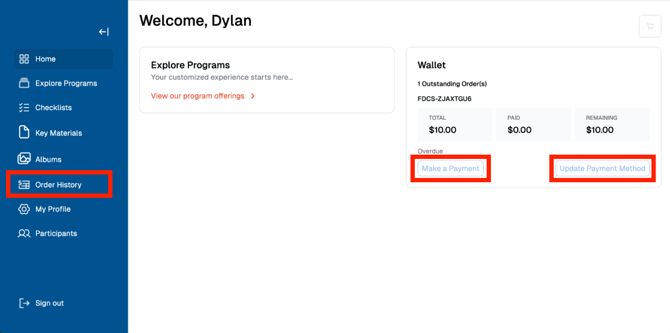
- Update/replace their payment method. Direct them to the Home tab of the parent portal. If they have an active Order, they will see “Update Payment Method” in their Wallet section.
- Make a payment. Direct them to the Home tab of the parent portal. If they have an outstanding balance, they will see “Make a Payment” in their Wallet section.
https://ims.bravoenrollment.com/
- Daily — your school records attendance and late pickups in its own system. Nothing happens in Bravo.
- Weekly — pick a day. Enter the week's care and any late fees for every family. Check Orders for new enrollments.
- Monthly — work the Balance − list: settle what you can, message the rest.
- Per term — review outstanding balances and any unused credits.
|
OPERATE AT YOUR OWN PACE Billing cadence — weekly, biweekly or monthly — this vary based on your policy, your school and your schedule. |
Billing Cadence
As a coordinator, you can bill the family as desired.
- Charges are set up as weekly charges, but can be stacked on a bi-weekly or monthly basis.
- This allows you to bill the family as frequently as needed, and you can charge their payment method on the cadence you choose.
Example: DePaul Catholic BeforeCare Program vs. AfterCare Program
- BeforeCare: monthly payments. Since charges are set up weekly, you can add the weekly charge for every week of that month and bill the family monthly.
- AfterCare: weekly payments. Since charges are set up weekly, you can add the weekly charge for every week and bill the family weekly.
Part 2 · The core loop
Seven tasks. Together they are the job — the rest of this guide is exceptions. Run through all seven in a practice account before you work on a real family.
1 · Find a familyWHEN Every single time. This is the front door to everything else.
- Go to admin-ims.bravoenrollment.com/admin and sign in.
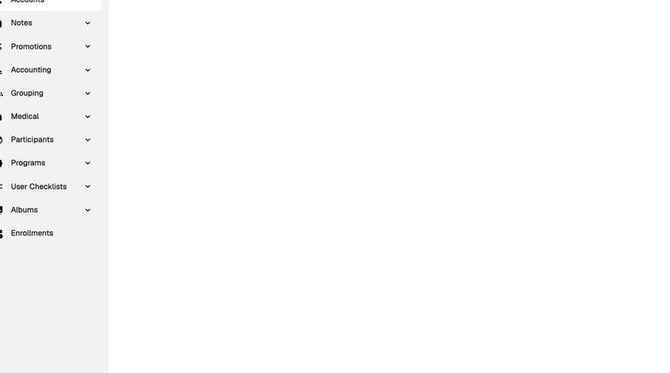
The Bravo admin sign-in page.
2. Click Accounts. You'll see every account for your location.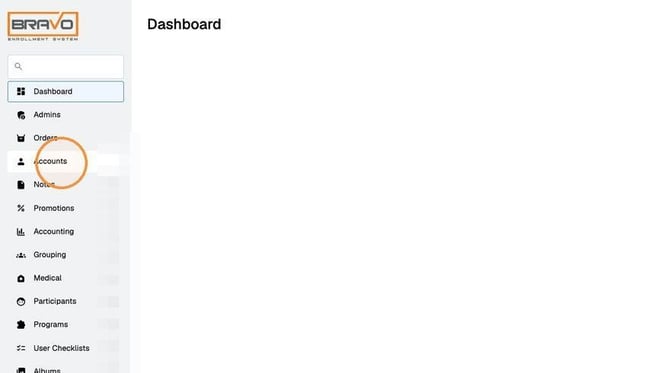
Accounts sit in the left-hand menu.
- Search by parent name, email, phone number, or student name — student name is often fastest, since that's what you have on your sign-in sheet. Then click Apply Filters.
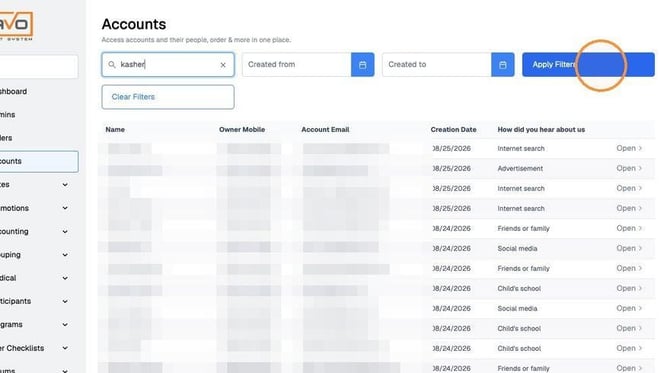
Type your search, then Apply Filters.
- Click Open on the account you want.
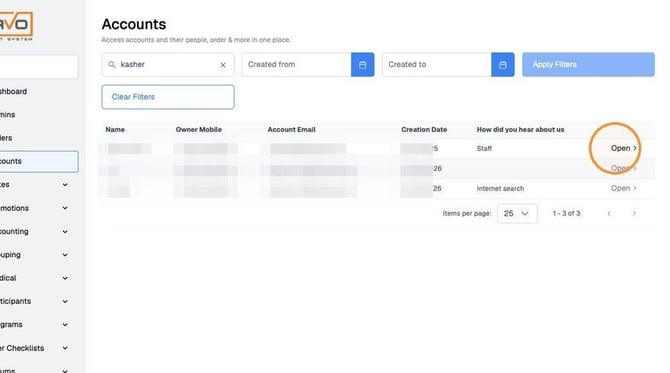
Open is at the right end of each row.
- You'll land on the family's account, where everything about them lives.
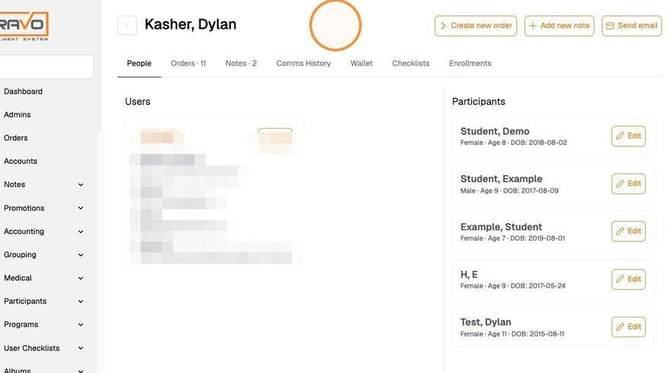
The account view — people, orders, notes, wallet.
2 · Bill a family for careWHEN Your weekly billing session, once you know what each family used.
- From the account, click Orders.
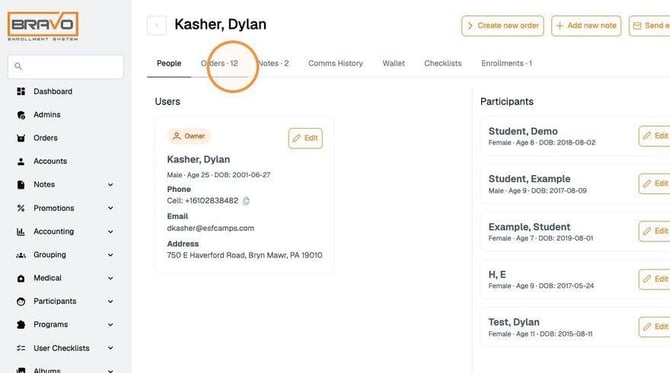
Orders is a tab across the top of the account.
- Click Open next to the order, then click Edit.
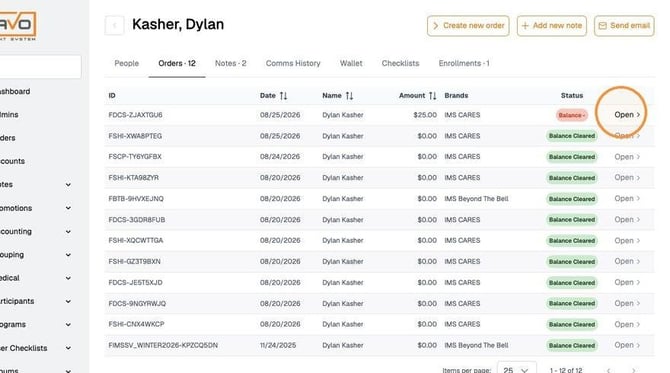
Open the order you want to add to.
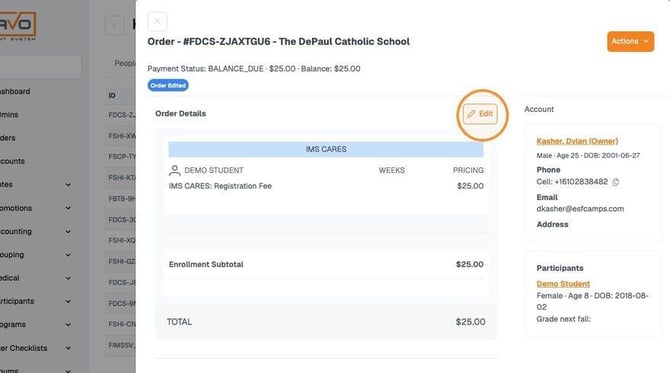
Edit unlocks the order for changes.
- Click +Division, then Next.
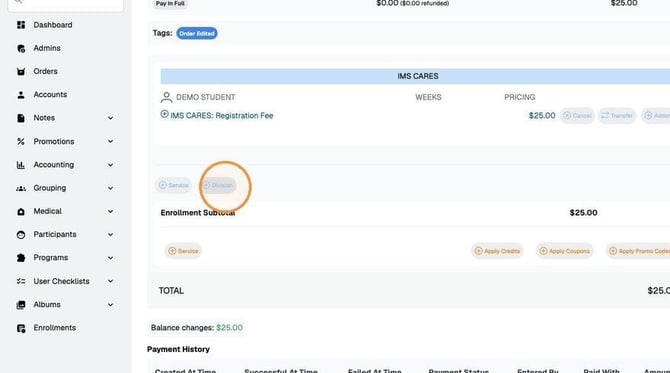
+Division is how you bill for the program itself.
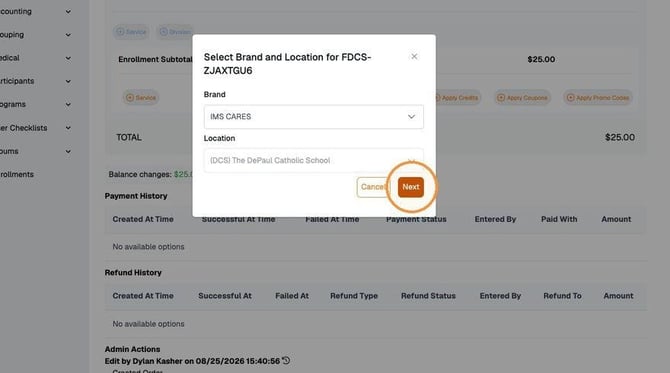
Confirm with Next.
- Click Select Camper and choose the child.
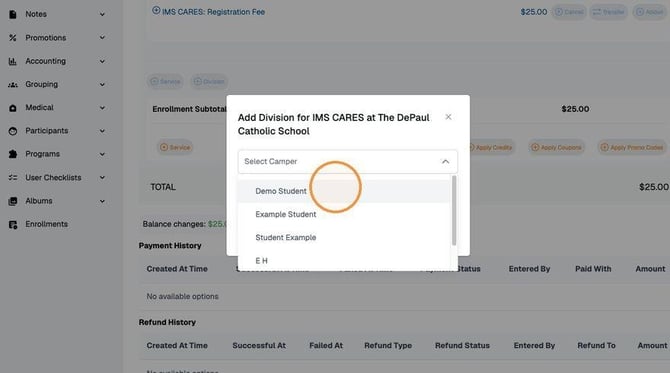
Pick the child you're billing for.
- Click Select Division and choose the program — for example IMS CARES: Afterschool CARES Program. Before care is a different division in this same list.
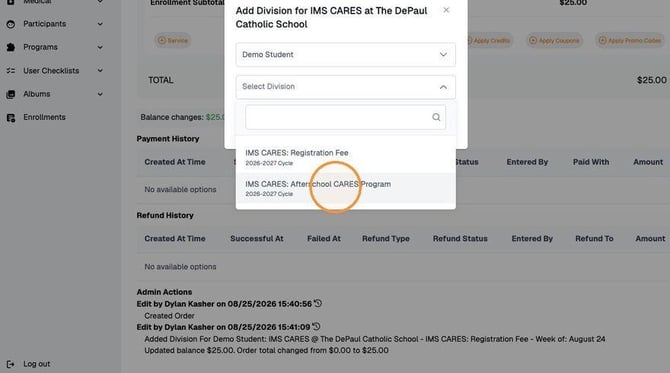
Before care and after care are separate entries here.
- Click Select Week and choose the week or weeks you're billing for.
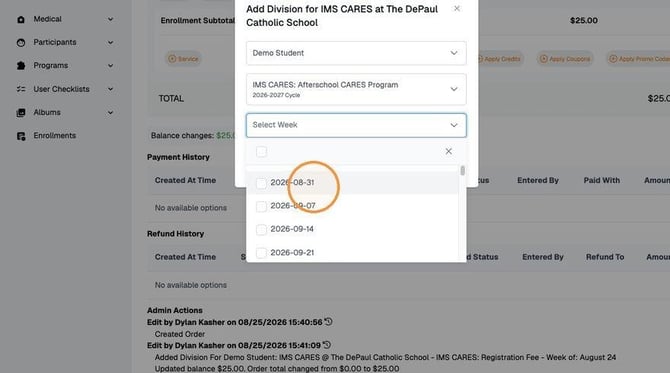
Select one week or several at once.
- Click Add.
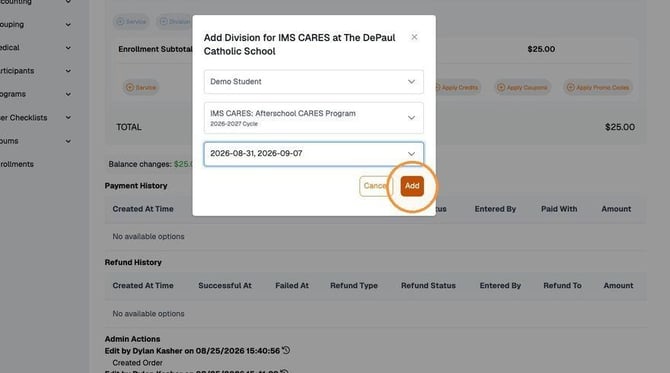
Add stages to the line — it is not saved yet.
- Repeat from step 3 for each additional child or program.
- For 2 or more children, a coupon must be applied so the family is billed at the correct rate for 2, or 3+ children. To do this select Apply Coupons -> Select a Coupon -> Choose the one for your school and number of children.
- Click Save, then confirm.
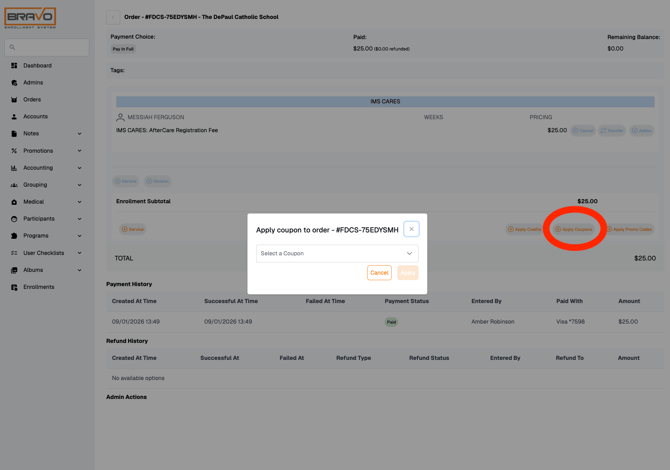
Save when everything looks right.
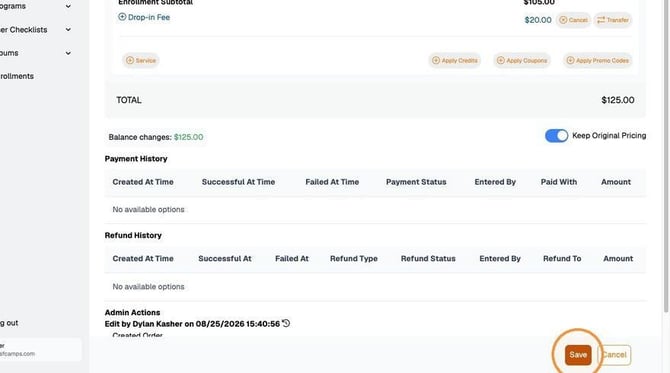
Confirm to commit the changes.
|
ONE FLOW COVERS FOUR SITUATIONS Before care and after care are two entries in the same division list. A second child is another pass through Select Camper. Several weeks is a multi-select at step 6. Siblings on one account are billed together on the same order. Learn this once and you've learned the core of the job. |
|
THE MISTAKE TO AVOID Add stages your change — it does not commit it. Nothing is real until you Save and confirm. If you close the order at step 7, your work is gone. |
3 · Bill a late pickup fee
WHEN A parent collected their child after the cut-off, and your school's policy charges for it.
- In the same order, with Edit open, click +Service.
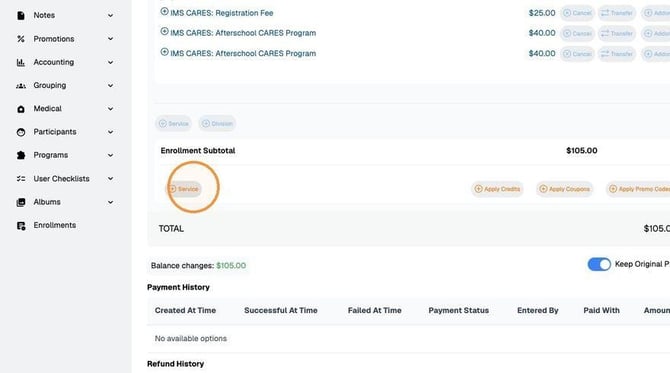
+Service is for charges that aren't program weeks.
- Click Select Service and choose the charge.
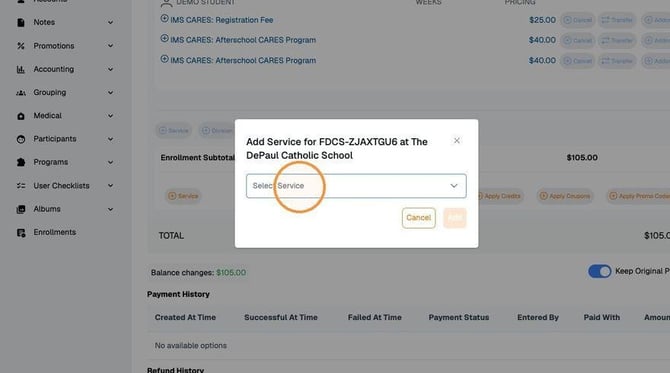
Open the service list.
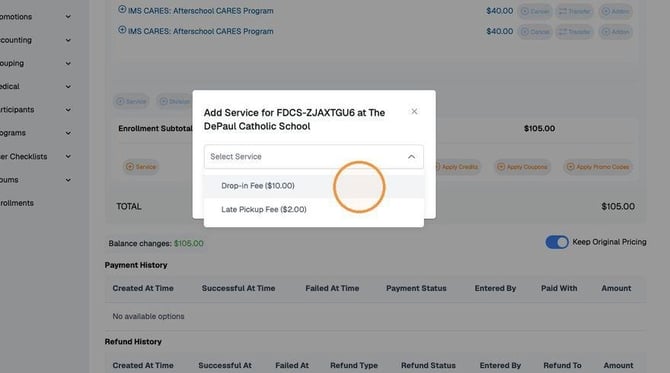
Choose the service you're billing for.
- Turn on Custom Amount.
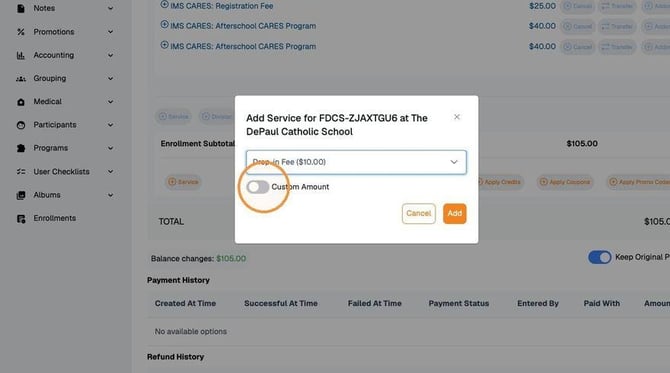
Enable Custom Amount to set the figure yourself.
- Enter the amount you are billing, in case it is different from the default.
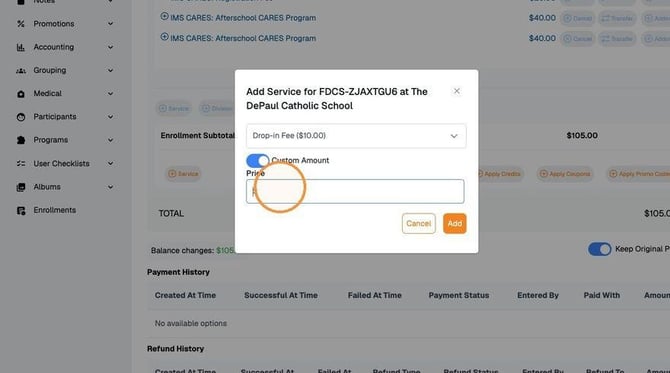
Type the amount.
- Click Add.
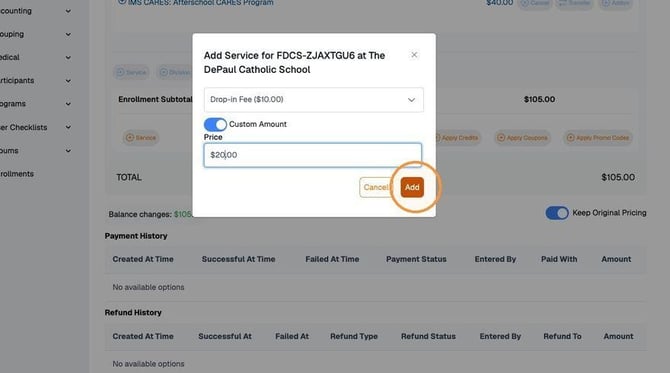
Add stages the charge.
- Click Save, then confirm — same as billing for care.
|
DO THIS AT THE SAME TIME Add a note to the account saying which day the late pickup was and how late. If a parent questions the charge in March, that note is the whole conversation. See task 7. |
4 · Take a payment
WHEN A family pays you, or you're running a card on file.
- Open the order and click Actions at the top right.
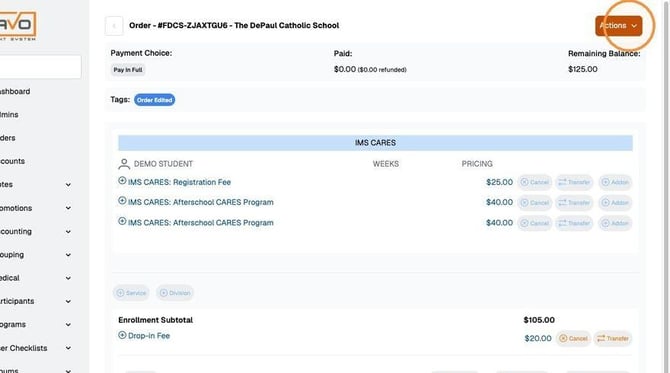
Actions sits at the top right of the order.
- Click Settle balance.
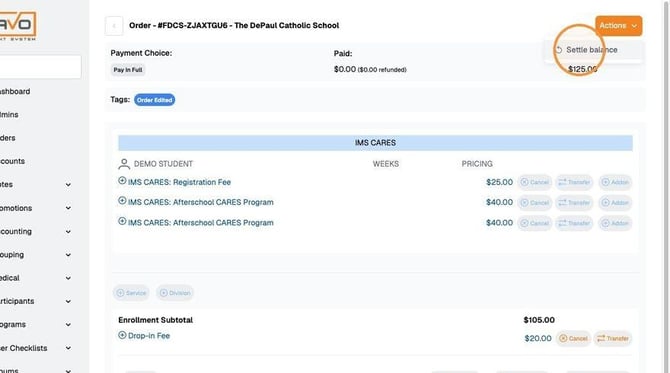
Settle balance is where payments are recorded.
- Click Select a payment method and choose one.
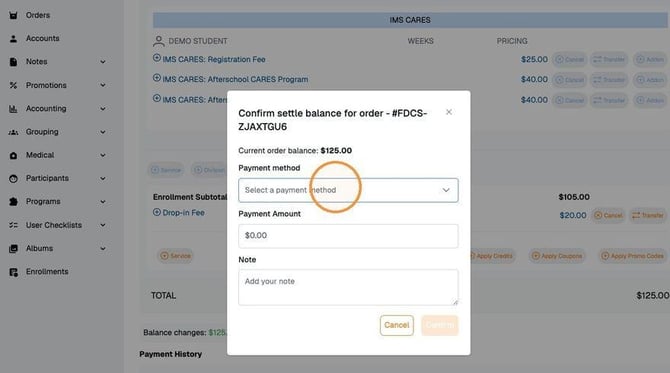
Open the payment method list.
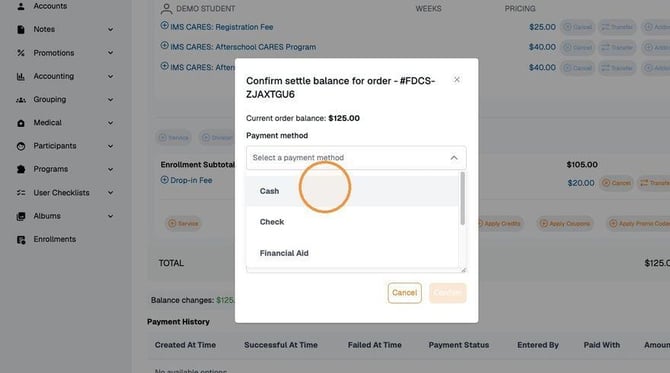
Choose how the family is paying.
- Enter the payment amount.
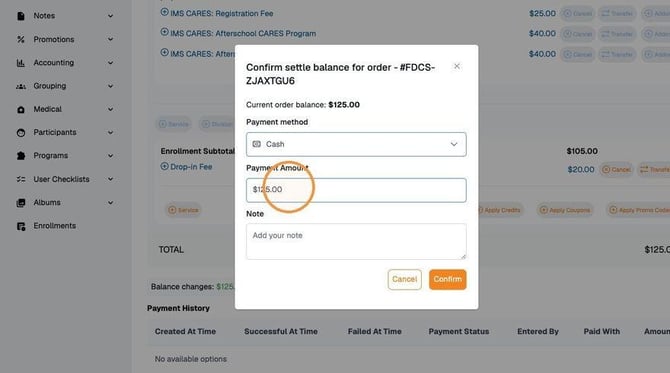
Enter what is actually being paid now.
- Enter payment notes — always. Write what the payment was for and how it arrived (check number, cash received by whom, and so on).
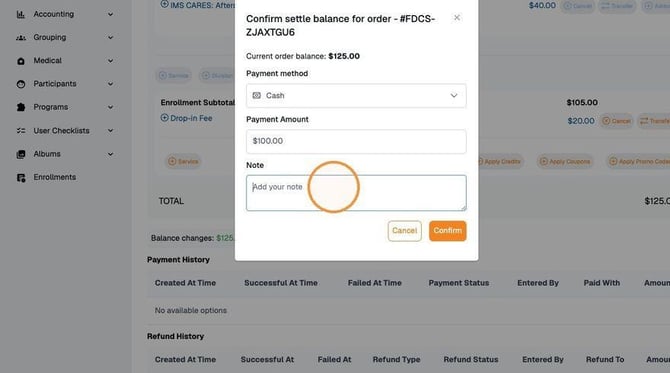
Payment notes are what make this explainable later.
- Click Confirm.
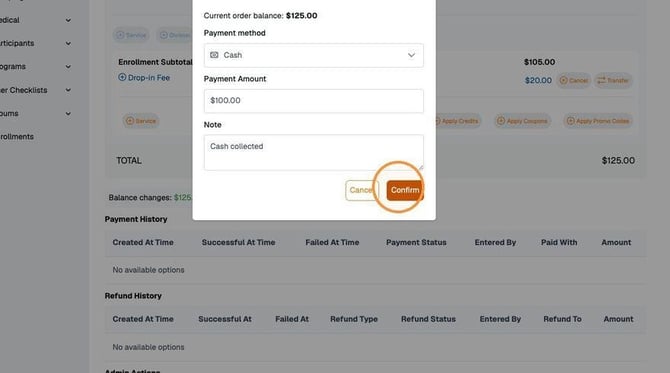
Confirm to record the payment.
|
DON'T SKIP STEP 5 An “unusual” payment with no note is impossible to explain later. Two months on, "$180" tells you nothing; "check #2214 for Nov before care, received at front office" tells you everything. |
WHEN You added the wrong week, the wrong child, or the wrong amount — and also whenever a charge needs to come off for any other reason.
|
WHY THIS IS IN THE CORE LOOP This is the only corrective action in the system, and three other situations resolve to it: a refund, a disputed charge, and cleaning up after a chargeback. |
Most common billing mistakes:
- Added a line unintentionally (before save). In the edit Order screen click “Cancel” next to the line item before you save to remove the line item.
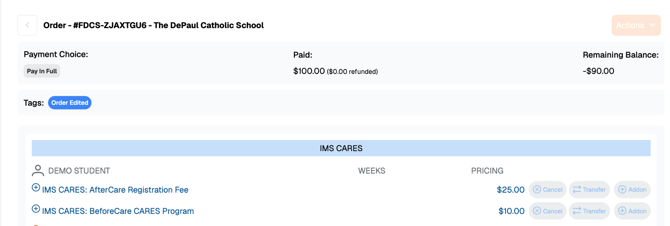
- Added a line unintentionally (after save). Re-edit the Order -> Click cancel next to the line item -> Click Save -> Confirm Save
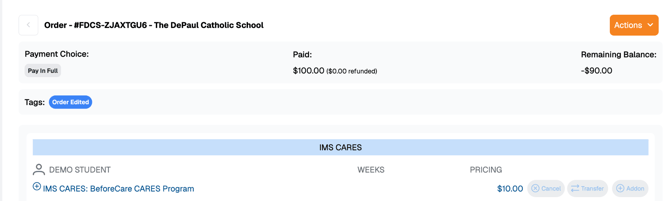
- Refunding the overpayment resulted from an adjustment. Edit the Order -> Click cancel next to the line item -> Click Save -> Confirm Save -> Click Actions -> Refund Balance -> Refund to the original payment method or to credit (refer to Part 3)
|
If any case is something you are unable to do, contact ESF. |
6 · See who owes you money
WHEN Your monthly collection pass — and any time you want a picture of where things stand.
- Click Orders from the main menu.
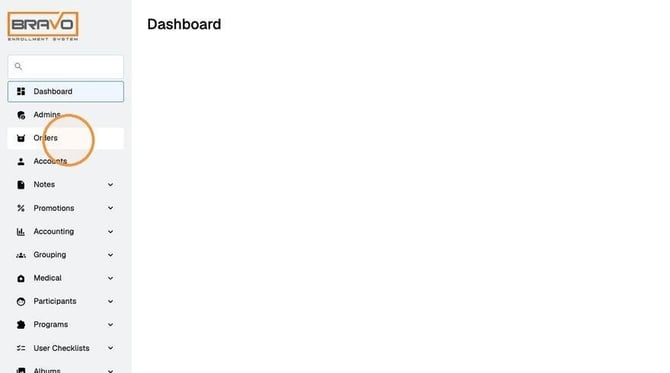
Orders in the left-hand menu shows every order.
- Open the Status filter and select Balance −.
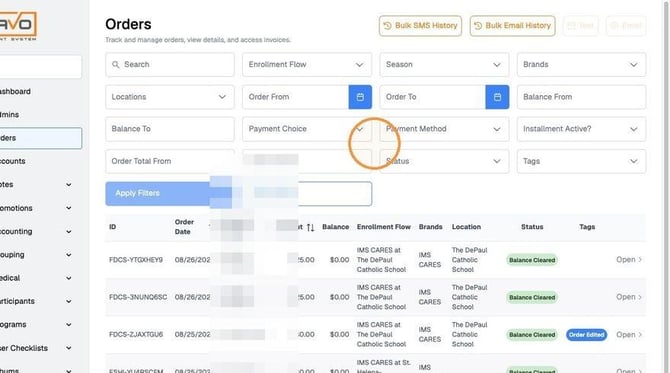
The Orders list with its filter row.
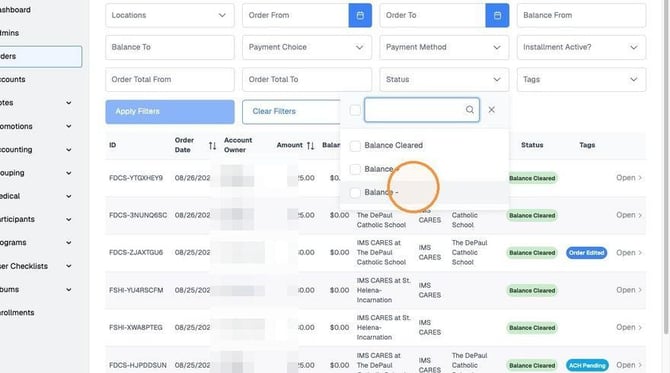
Balance − means money is still owed.
- Click Apply Filters.
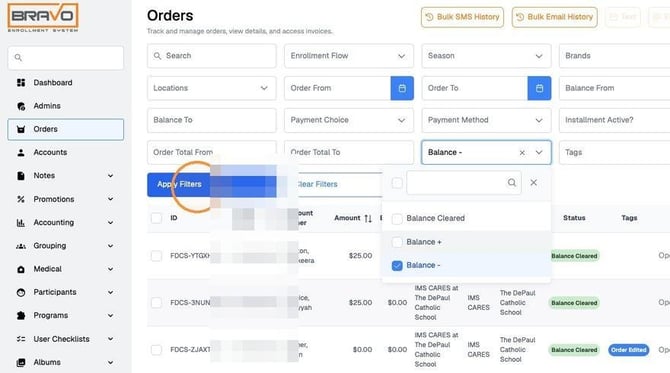
Apply Filters narrows the list.
- To message the whole list: tick the checkbox at the top of the column to select everyone, or tick individual rows.
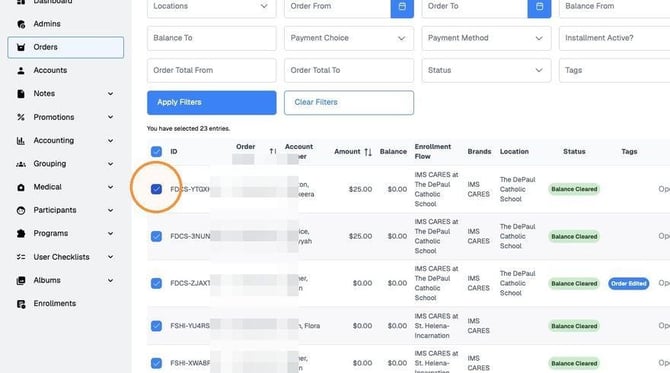
The top checkbox selects everything shown.
- Click Text or Email.
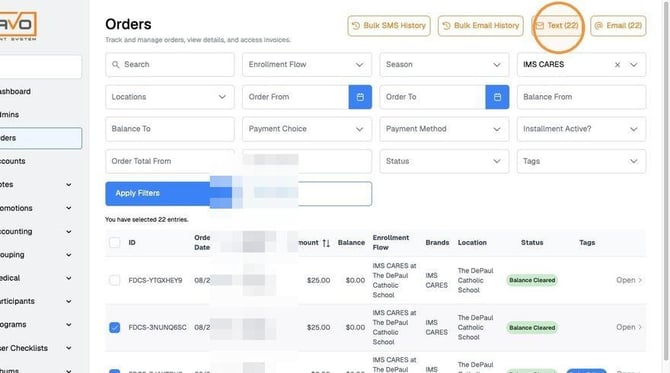
Choose how to reach them.
- Fill in recipients and your message. Email also needs a subject line.
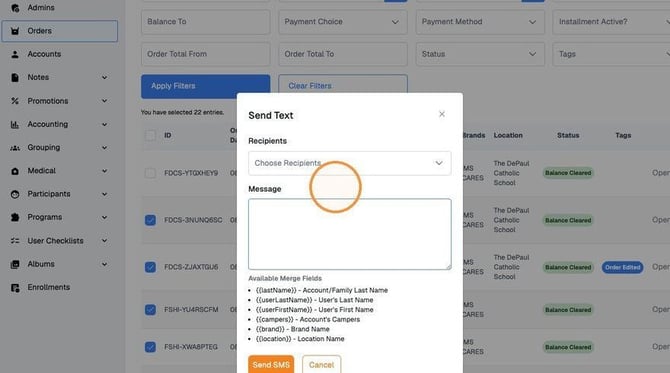
Merge fields let you personalise the message.
- Click Send.
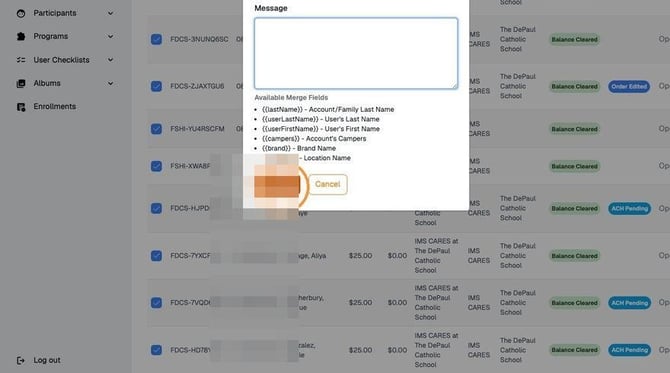
Send when the message is ready.
|
THIS LIST IS YOUR CLOSE There's no separate month-end checklist. The month is done when the Balance − list is empty, or every line still on it has a note explaining why. One view, one habit. |
|
THE ORDERS MODULE HAS A SECOND JOB It's also where you watch new enrollments arrive. A new order appearing means a new family signed up. Check it during your weekly session so nobody attends for a month before you notice them. |
|
CHECK BEFORE YOU CHASE Click Bulk SMS History or Bulk Email History to see what was already sent, when, by which admin, and to whom — so a family doesn't get a fourth identical reminder. |
7 · Write it down
WHEN Every time something happens that isn't ordinary billing. E.g. Received cash. Parents drop in late and result in a fee. The parent wants a refund/prorate.
- From the account, click Add new note.
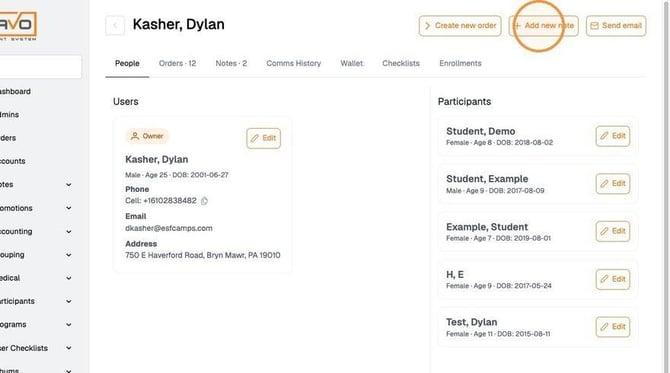
Add new note is at the top right of the account.
- Select a category and type.
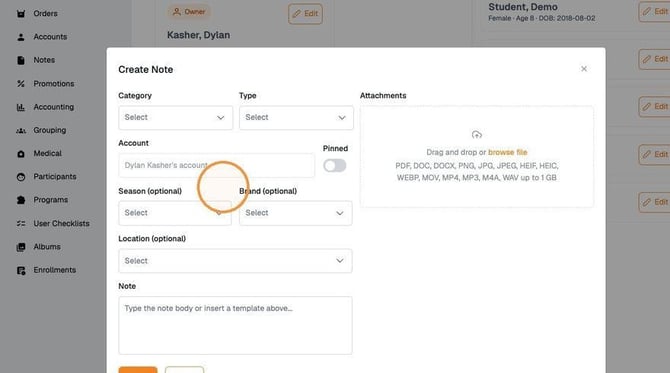
Categories and types can be customised for your school.
- Add attachments if you have any — a photo of a check, a signed form.
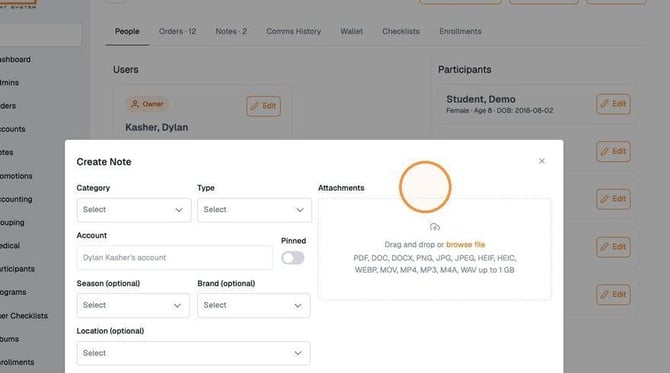
Attachments are optional but useful.
- Leave Season, Brand and Location empty. Type what happened in the note box.
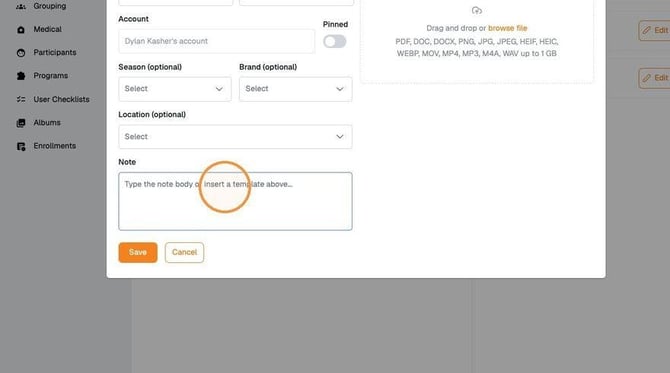
Write the detail here.
- Click Save.
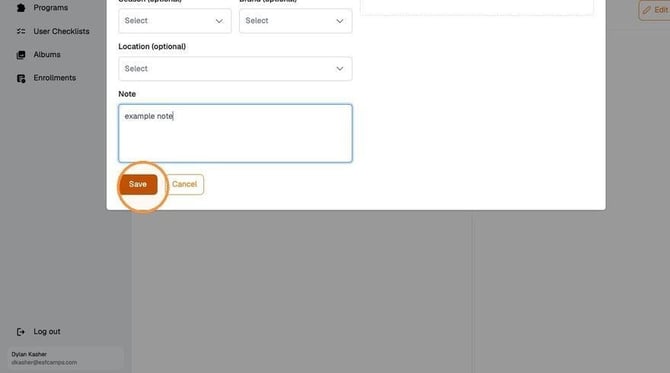
Save the note.
- To read a family's history later, open the account and click Notes. You can edit, pin and unpin from there — pin anything a future coordinator would need on day one.
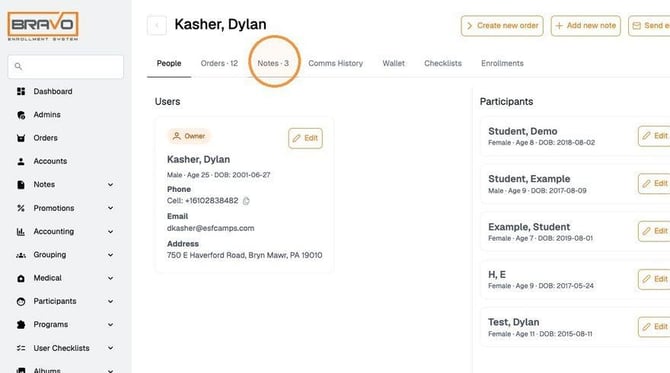
Notes on the account.
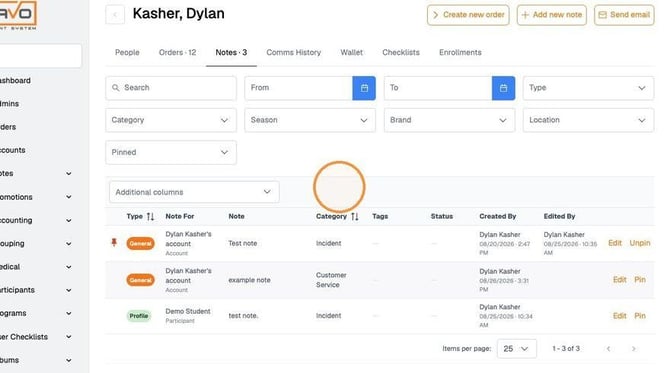
Every note, with who wrote it and when.
|
A NOTE IS MANDATORY WHEN You take cash or a check · you give or apply a credit · you remove or change a charge · you make any verbal agreement with a parent · a payment fails · a family disputes something. If you're unsure, write it. Nearly every exception in Part 3 ends here. |
Part 3 · When something unusual happens
Find your situation, do the thing. Most of these end with a note on the account.
Money problemsThe card on file was declined or has expired
WHEN The family enrolled with a valid card, and it has since expired or been closed. They are still enrolled and their child still attends — only the payment failed.
- Contact the parent and ask them to update their payment method in their parent portal.
- Add a note to the account recording the date and that you asked.
- Leave the balance open. Settle it once they've updated the card.
|
DON’T Don't try to change a card. Only the parent can update their own payment method. Direct them to their parent portal to resolve. ims.bravoenrollment.com/ |
A family paid “in cash” first but has no order in Bravo yet
WHEN You've already taken enough tuition, deposit or registration fee to put a child on the roster and sign them up — but there's no order on the account to bill against.
- Open the family's account and click Create new order at the top right.
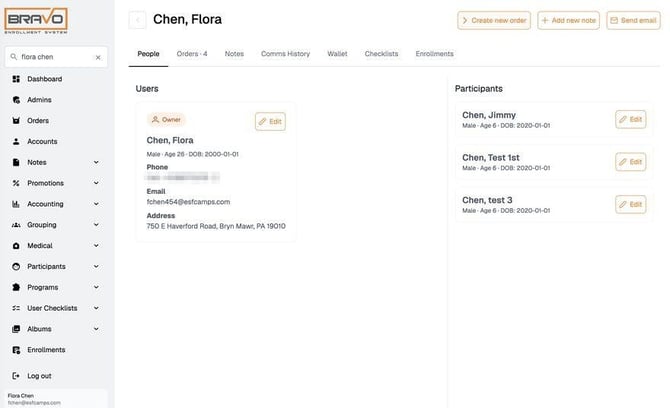
Create new order sits at the top right of the account.
- Choose the Season.
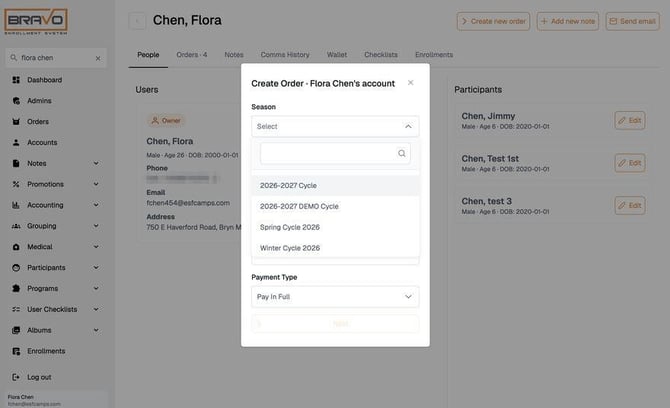
Pick the season first — the rest of the form depends on it.
- Fill in Enrollment Flow, Brand, Payment Method and Payment Type, then click Next.
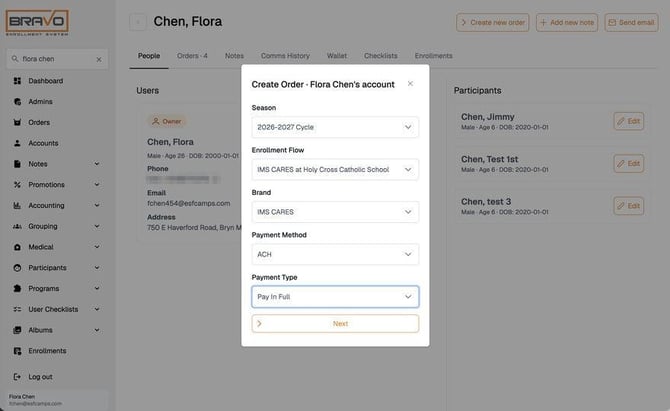
Enrollment flow, brand, payment method, payment type.
- Confirm the Brand and Location, then click Next.
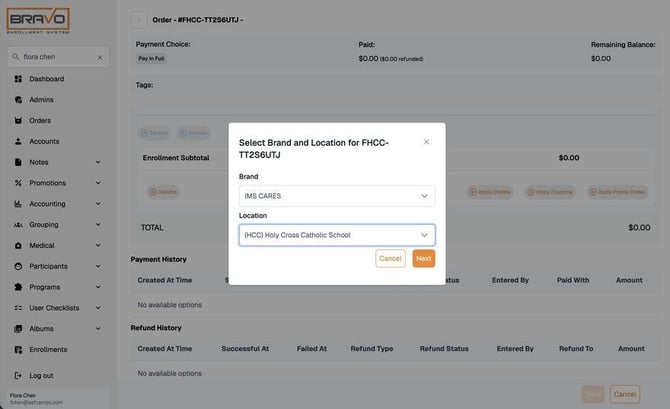
Confirm the brand and the school.
- Click +Division and choose the camper, the program and the week, then click Add.
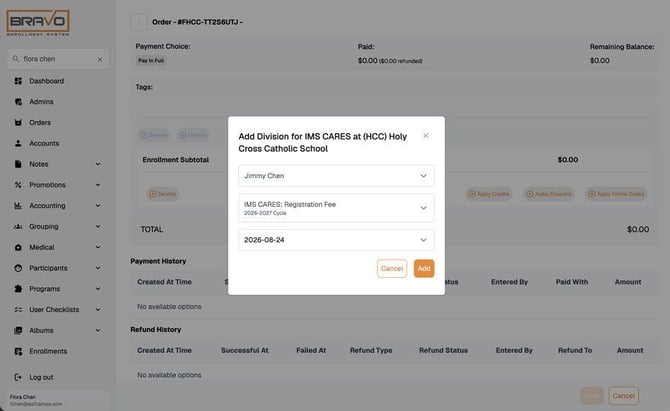
Same picker as ordinary billing — camper, program, week.
- Check the order, then click Save.
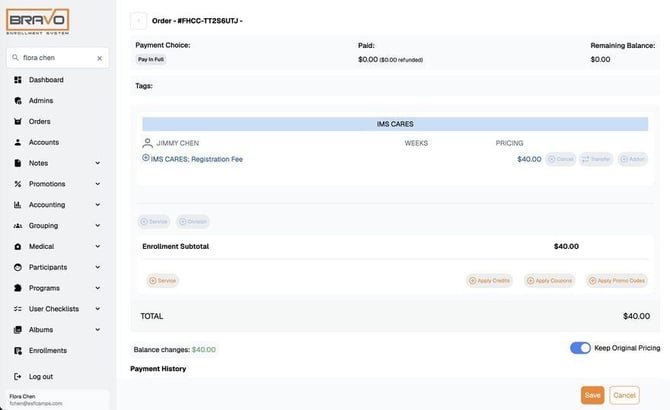
Review before saving.
- Confirm the save.
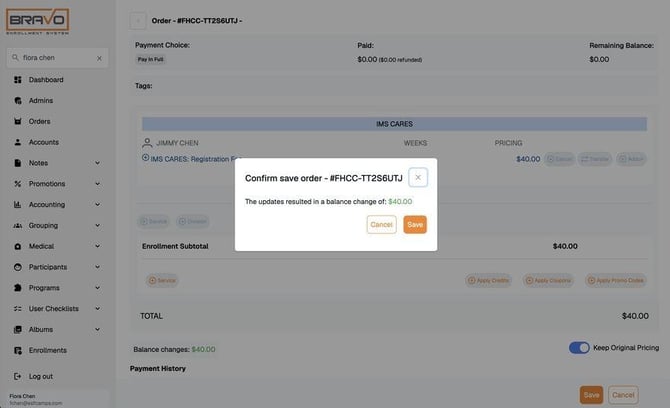
Confirm to commit the new order.
- The order now carries a balance — this is the money you have already collected.
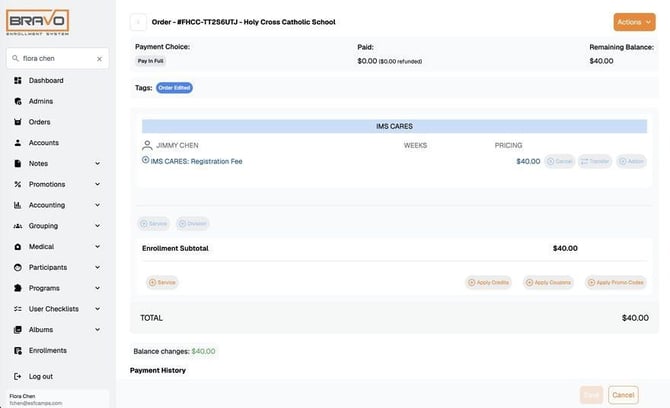
The order now shows a balance to settle.
- Click Actions, then Settle balance.
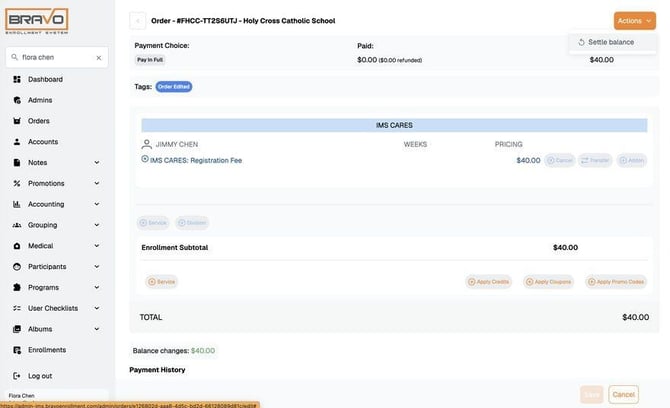
Actions → Settle balance.
- Choose the payment method that matches how the money actually arrived — Cash, Check or Financial Aid — enter the amount and payment notes, then click Confirm.
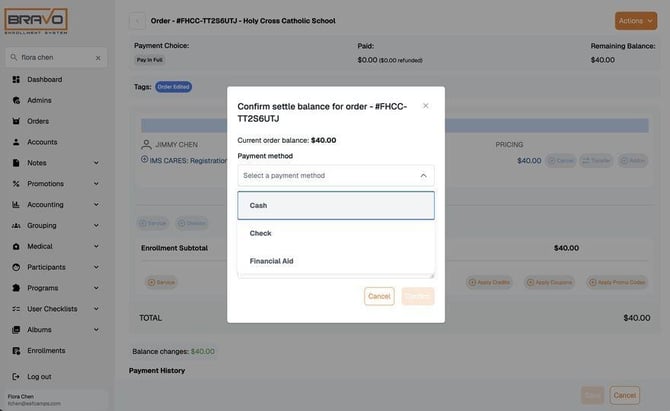
Record how the money actually reached you.
- Add a note to the account: what you received, from whom, in what form, and on what date.
|
WHY THIS ONE IS DIFFERENT Normally the parent enrolls and Bravo creates the order for you. This is the one case where you build the order by hand — money is already in your possession and the child needs to be on the roster now. From step 5 onward it is the ordinary billing and settling flow. |
|
THE NOTE IS NOT OPTIONAL HERE A hand-built order settled with cash or a check is the least self-explanatory transaction in the system: nothing about it explains itself later. Write down what you received, from whom, in what form, and when — before you move on. |
|
ONLY WHEN THE MONEY IS ALREADY IN HAND Do not create an order to hold a place, to invoice a family, or because a parent said they will pay. Creating the order records a balance you are expected to settle. If the money has not arrived, the family enrolls the normal way. |
A parent is allowed to pay part of what they owe
WHEN The family wants to pay something now and the rest later.
- Point them to their parent portal, where they choose how much to pay down.
- Note the conversation on the account.
- The remaining balance stays on the Balance − list until it's cleared.
|
DON'T Negotiate an amount, promise a schedule, or try to construct a payment plan in the admin. The parent can decide the amount, in their own portal, without your help. Direct them to their parent portal to resolve. ims.bravoenrollment.com/ |
A parent pays by cash or check
WHEN Money arrived outside Bravo — handed to you, or dropped at the school office. Same handling either way.
- Record it against the order using Settle balance (task 4), selecting the matching payment method.
- Put the detail in the payment notes: check number, amount, date, who received it.
- Add a note to the account as well, with an attachment if you have one.
A family overpaid
WHEN More money came in than was owed.
The method of refund can be determined on a case-by-case basis
- The overpayment can be refunded to the payment method.
- On the Order -> Click Actions -> Refund Balance -> Select payment method
- The overpayment can be refunded as credit that can later be used against future weeks.
- On the Order -> Click Actions -> Refund Balance -> Select prepaid credit
- This will then appear in the account Wallet as a credit to be used against future weeks.
A parent disputed a charge with their bank
WHEN The bank pulled the money back. Bravo treats this like a refund.
|
THIS ONE IS COUNTER-INTUITIVE — READ IT TWICE The money is gone, so it looks settled. But the balance does not go away. The family still owes it, and it stays open until either they pay it or your school decides to remove the charge. Both facts are true at once. |
- Note what happened on the account, with the date and amount.
- Treat the open balance as a normal unpaid balance — it stays on the Balance − list.
- If your school decides to write it off, you will have to remove the charge from the order (task 5) and note the decision and who made it.
|
NOT SURE? Contact ESF. |
Credits, discounts and removing charges
Give a family credit
WHEN A scholarship, a staff discount, a subsidy, or goodwill after a mistake. All of these are credit types — the flow is identical.
First, assign the credit to the account:
- Open the account and click Wallet.
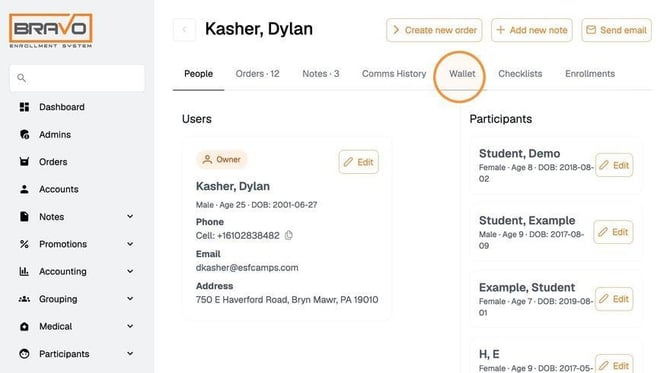
Wallet holds credit before it is applied.
- Click Assign Credits.
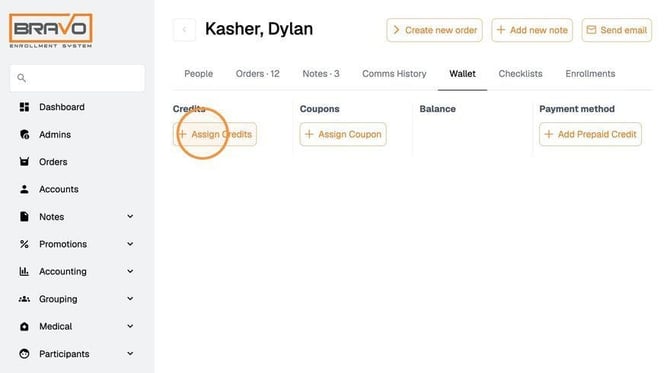
Assign Credits adds credit to the wallet.
- Select the credit type — choose the credit for your school.
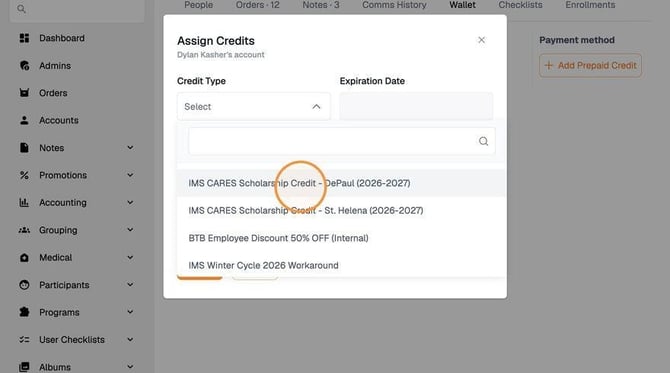
Scholarships, discounts and subsidies are all credit types.
- Enter the amount.
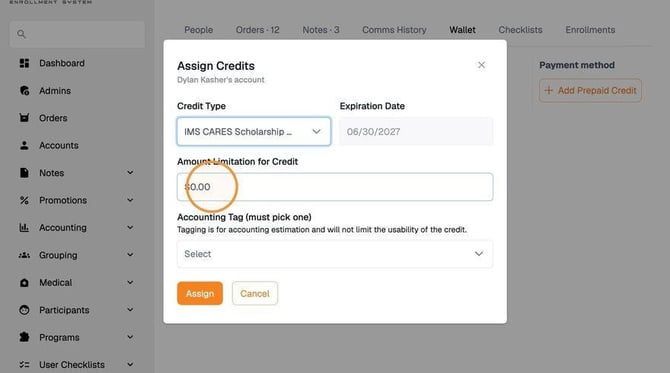
How much credit to assign.
- Under Accounting Tag, click Select and choose IMS.
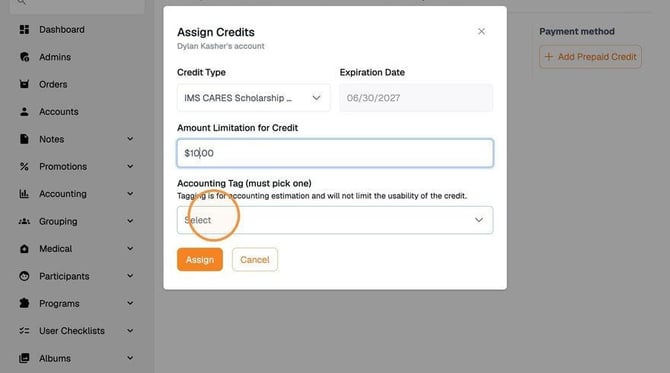
Always tag IMS.
- Click Assign.
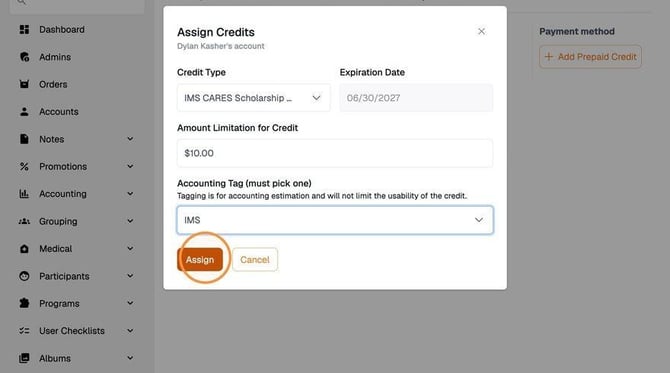
The credit now sits in the wallet — unused.
Then apply it to the order:
- Click Orders and click Open on the order.
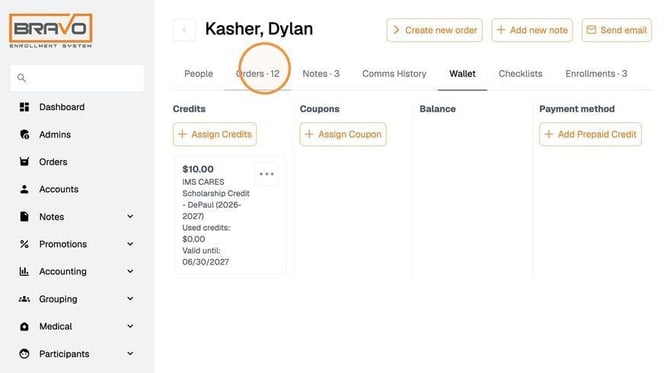
Go to the order the credit should reduce.
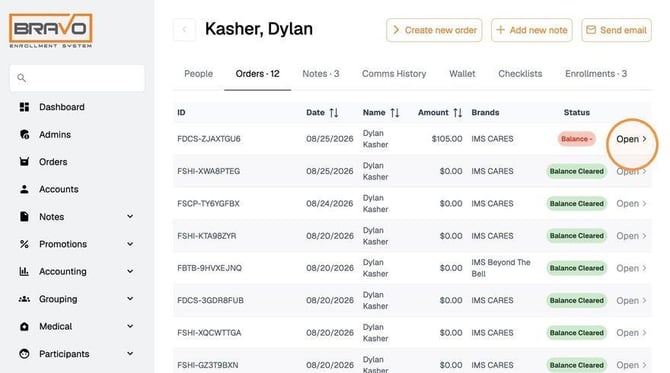
Open it.
- Click Edit.
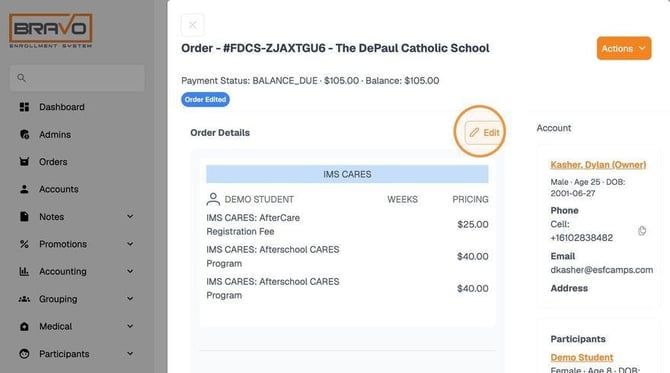
Edit unlocks the order.
- Click Apply Credits.

Apply Credits pulls from the wallet.
- Click select a credit and choose the one you assigned.
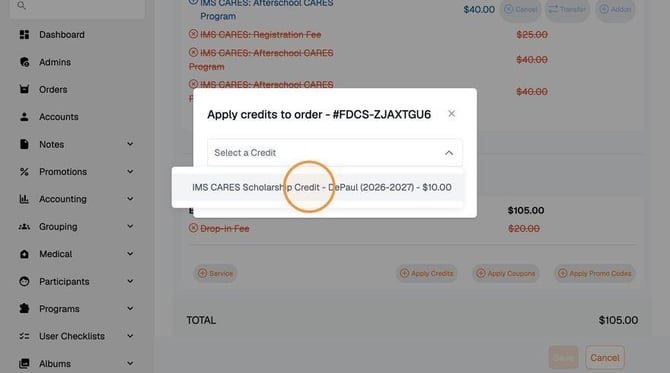
Pick the credit you just created.
- Click Apply, then Save.
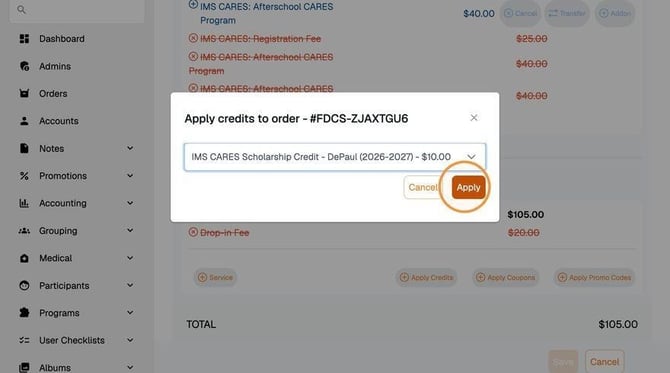
Apply attaches it to the order.
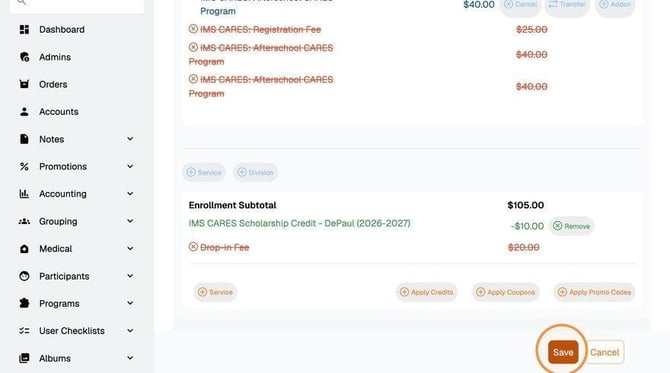
Save commits it — now the balance moves.
|
TWO STEPS, NOT ONE Assigning a credit puts money in the family's wallet — it changes nothing about what they owe. The balance only moves when you apply it to an order. Stopping halfway is the most common error with credits, and it looks like the system is broken. |
A parent asks for a refund
WHEN Two separate questions: should they get one, and how is it done.
- Whether to grant it is your school's decision, not yours to make on the spot and not ESF's to make for you.
- Once decided, the mechanics are the same as fixing a mistake — see task 5.
- Note the decision, who made it, and the date.
A family is badly overdue
WHEN A balance has been sitting unpaid through several reminders.
- Identify them the usual way — the Balance − list (task 6).
- Send a reminder from that list, and check Bulk SMS or Bulk Email History first so you're not sending a fourth identical message.
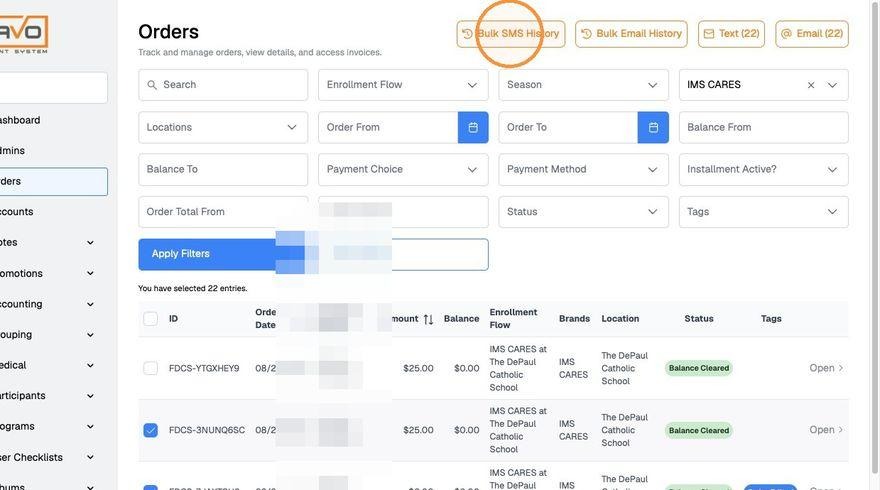
Message history lives at the top of the Orders screen.
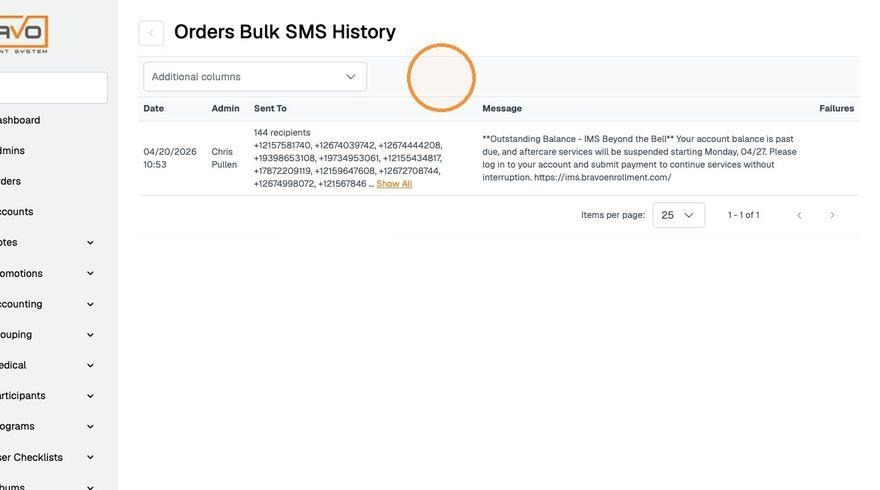
What was sent, when, by whom, and to whom.
- Note each contact attempt on the account.
- What happens next is your school's decision — how many days, what the consequence is, and who makes the call.
|
SCHOOL SETS THE POLICY Refund authority, overdue handling and day counts, and who may remove a disputed charge. Make sure you are not making those decisions alone. |
Roster changes
A family wants to join in November
Nothing special. Enrollment stays open all year — they pay the same registration fee and go through the identical sign-up. Then bill them like anyone else.
A family stops using care
Stop adding weeks. There is no withdrawal step. Settle any remaining balance the normal way.
Siblings on one account
Billed together on the same order. Each child is a separate pass through Select Camper in task 2 — it's easy to bill the first child and forget the second.
Separated or divorced parents
One account has one owner, and that's who you talk to. Bravo does not split a family's bill; the parents settle between themselves. If one wants to send a check, they contact ESF directly and it's recorded as a cash or check payment.
A child drops in who isn't in Bravo
Not possible to bill until the parent enrolls. Refer to “A family wants to join in November”.
With no account there's no order to add to.
The program is full
Let us know, we’ll be able to configure it.
Quick answersDid that payment go through?
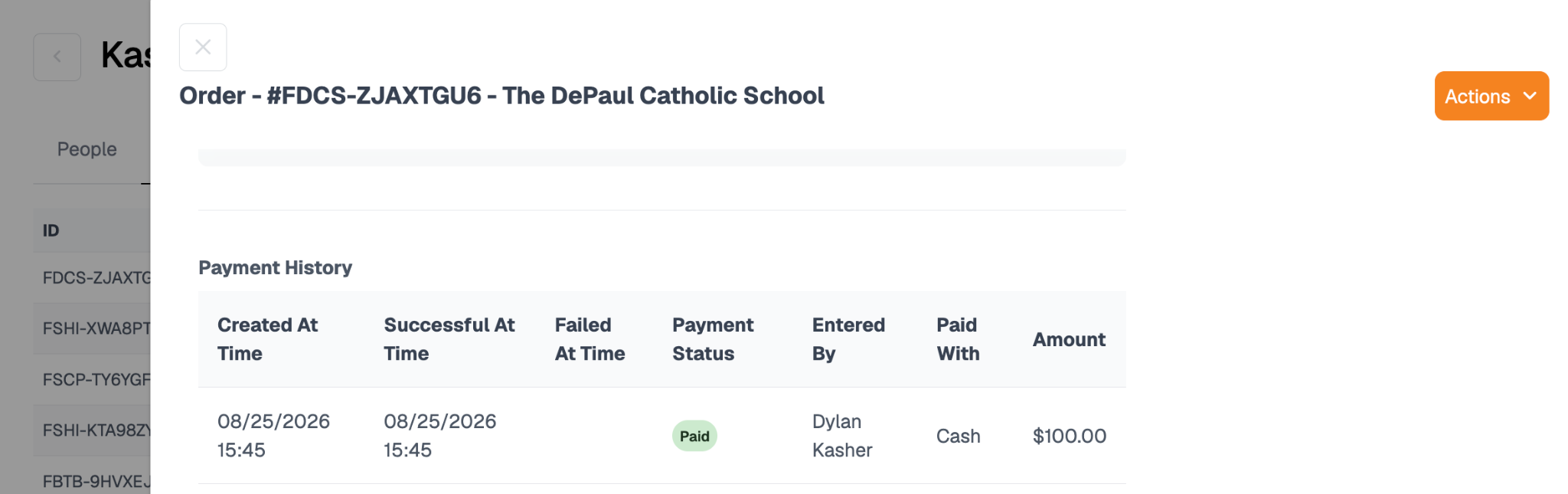
Check the payment status on the order. Open the order -> Scroll down to the Payment History section.
Who signed up this week?
New orders in the Orders module. Check it during your weekly billing session.
It was a four-day week — do I charge less?
No. Short weeks bill at the full week price. If your school wants a holiday reduction, ask ESF to set up a discount — never adjust the price yourself.
Check your roster and message families
WHEN You want a headcount, or you need to reach everyone — a snow day, an early dismissal, a program notice.
- Click Enrollments.
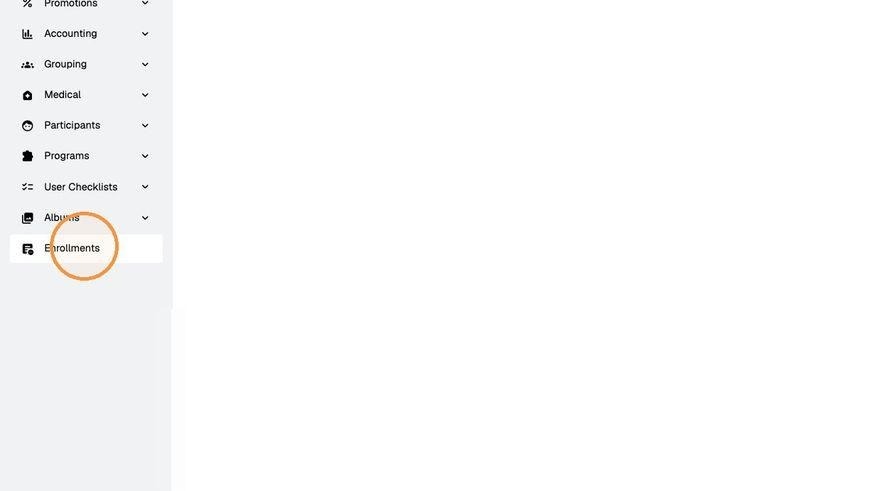
Enrollments in the left-hand menu.
- You'll see every registered student and the account they belong to.
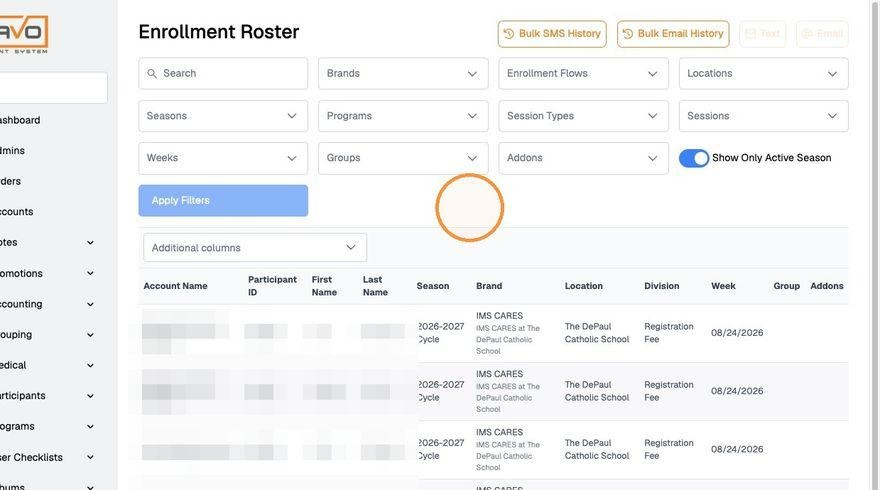
The enrollment roster.
- The total number of registered students is at the bottom right of the screen.
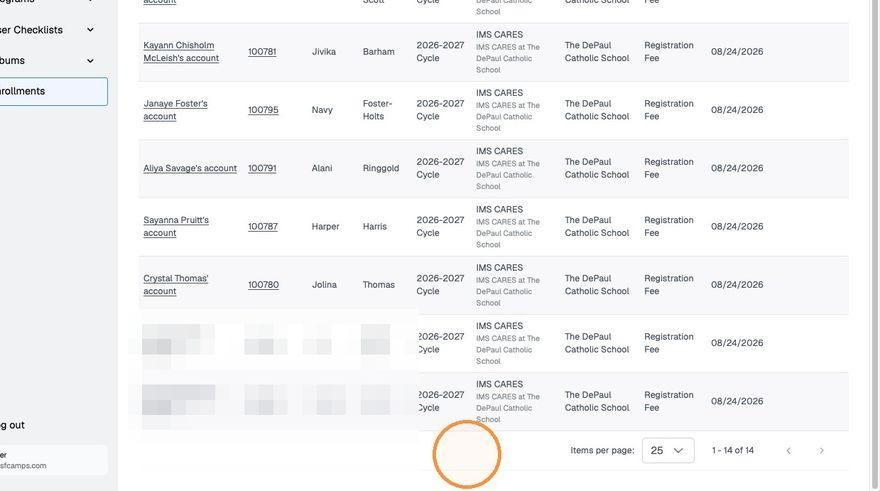
Your headcount, bottom right.
- To message families, select the accounts you want, then click SMS or Email at the top right.
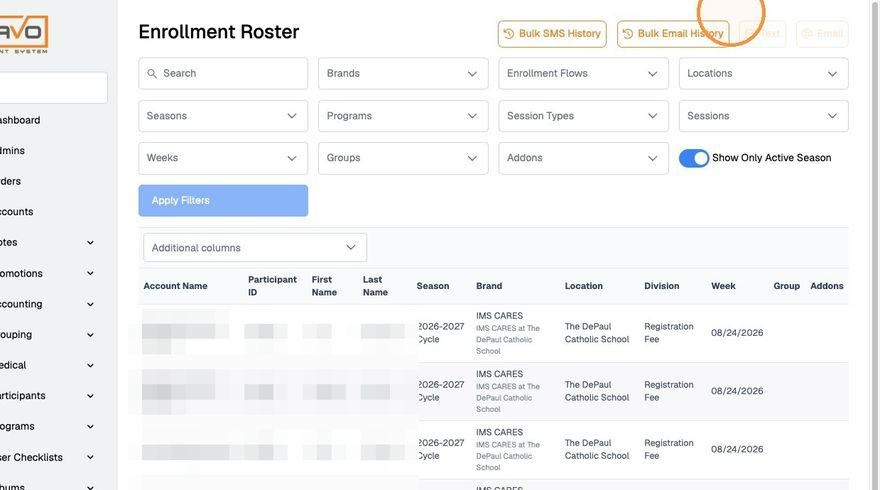
Select first, then choose SMS or Email.
Part 4 · CardsThree one-page references. Print them and keep them where you do your billing.
Your week- Daily — attendance goes in your school's system. Bravo untouched.
- Weekly — bill the week's care and late fees. Check Orders for new families.
- Monthly — work the Balance − list. Settle or message every line.
- Per term — review outstanding balances and unused credits.
- You take cash or a check
- You assign or apply a credit
- You remove or change a charge
- A payment fails or a card is declined
- You make a verbal agreement with a parent
- A parent disputes anything
- A late pickup is charged — say which day and how late
- One thread, three people, any question — a "how do I", a "this looks wrong", or a "I think I broke something". Don't work out which it is first.
- Include: school, account name, order number, a screenshot, and what you expected versus what happened.
|
WE ARE HERE TO HELP! Susan Gambescia: Sgambescia@esfcamps.com Flora Chen: fchen@esfcamps.com Dylan Kasher: dkasher@esfcamps.com |